
States
Optimizing Ticket Management
Section titled “Optimizing Ticket Management”By actively monitoring the status of tickets, you gain valuable insights into your team’s workload and generate important Key Performance Indicators (KPIs). Prioritizing tasks and setting deadlines help balance the workload and ensure the continuous functionality of your service desk. OTOBO offers sophisticated solutions for this through the use of specific ticket statuses.
Definition - Ticket Status
Section titled “Definition - Ticket Status”OTOBO uses predefined ticket statuses to clearly communicate the processing stage. This way, Agents always know which tickets require their attention. Additionally, OTOBO offers the ability to create detailed evaluations of ticket statuses via ticket search or special reports. Dashboards, queue overviews, and service overviews facilitate personalized sorting and provide a clear overview.
- closed successful: A ticket has been successfully resolved.
- closed unsuccessful: A ticket was closed without finding a solution.
- merged: The content of the ticket has been integrated into another ticket.
- new: The ticket was opened without agent contact.
- open: Ticket in progress with active communication between Customers and the agent.
- pending auto close (+/-): Tickets that are automatically closed as successful or unsuccessful based on the elapsed waiting time.
- pending reminder: Tickets that are to be processed again after the waiting time.
- removed: The ticket has been removed from the system.
Managing Ticket Statuses
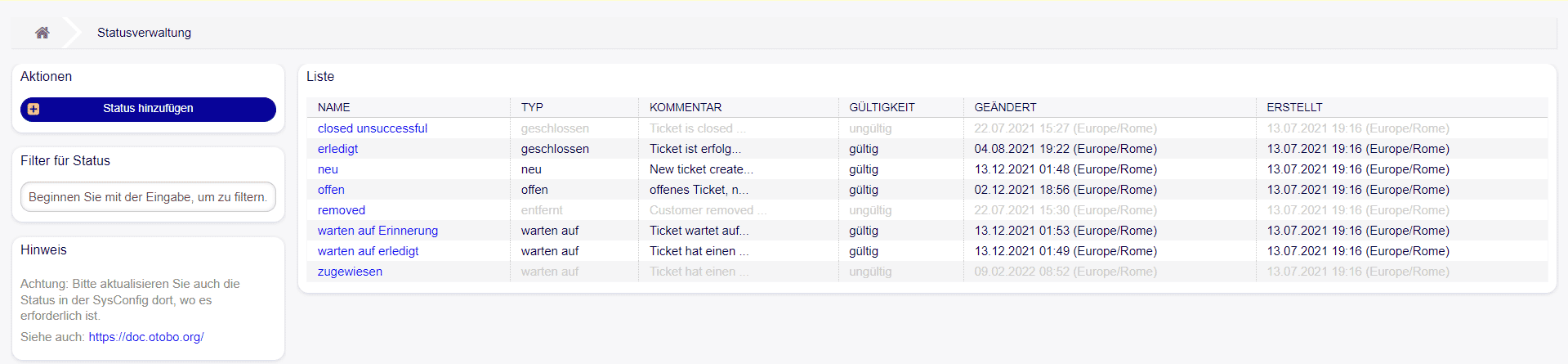
Section titled “Managing Ticket Statuses”Managing ticket statuses is a central aspect of the OTOBO platform. To add a new state, navigate to the States section in the Ticket Settings module. A fresh installation of OTOBO includes a set of states by default that ensure efficient ticket processing.
Adding a State
Section titled “Adding a State”To add a new state, follow these steps:
- Select Add state in the menu.
- Fill in all required information.
- Save the new state.
Note that states cannot be deleted, only deactivated. This is done by setting the Validity to invalid or temporarily invalid.
Editing and Checking States
Section titled “Editing and Checking States”Editing existing states is designed to be intuitive. Select a state from the list, make your adjustments, and save them. If you change the name of a state already used in the system configuration, OTOBO performs a validation check and warns of potential conflicts.
Effective management of ticket states is a key aspect of the success of any helpdesk or customer support system. OTOBO offers an advanced and flexible way to configure and customize ticket states to optimally support process handling in your service desk.
Options for Changing State Names
Section titled “Options for Changing State Names”When you change the name of a state, OTOBO offers you three options:
-
Save and update automatically: This option applies the change and also automatically updates all affected settings. This facilitates the maintenance of the system configuration and ensures that all connections and references remain consistent.
-
Do not save, update manually: Choose this option to apply the changes without automatically updating the affected settings. You must then manually check all active connections and references and update them if necessary.
-
Cancel: This option cancels the process without making any changes. It is usually chosen when the impact of a name change is uncertain.
It is extremely important to handle the renaming of objects with caution, as not all links can be verified automatically. Special attention should be paid to dashboards, action control lists, and processes. Thorough documentation of your configuration is essential to mitigate this risk.
Settings for Managing States
Section titled “Settings for Managing States”When configuring or editing a state in the ticket system, the following fields should be noted:
- Name: The unique name of the state, which is visible in overviews.
- State type: Specifies the type of state, e.g., closed, new, open, pending, etc.
- Validity: Determines whether the state is active (valid) or deactivated (invalid or temporarily invalid).
- Comment: Provides space for additional explanations or notes regarding the purpose or use of the state.
Important Configuration Options
Section titled “Important Configuration Options”To adjust the behavior of pending tickets and their verification, special system configuration options are available in OTOBO:
-
Daemon::SchedulerCronTaskManager::Task###TicketPendingCheck: This configuration controls the frequency with which the system checks the status of pending tickets. It is crucial for the efficiency of the reminder system and the automation of ticket processing. -
Ticket::StateAfterPending: Determines the state a ticket changes to after the pending deadline has expired. This setting allows workflows to continue seamlessly after waiting for a response or the completion of tasks.
The customization and configuration of ticket states in OTOBO provides a flexible foundation for a powerful ticket system. A well-thought-out implementation of these functions can significantly improve the efficiency and responsiveness of your service desk.
Status Evaluation in Statistics
Section titled “Status Evaluation in Statistics”Evaluating ticket statuses in OTOBO allows you to analyze the performance of your service desk and gain important insights. By creating statistics and reports, you can identify trends, pinpoint bottlenecks, and increase your team’s efficiency. You can find more information here on Statistics Management in OTOBO.
Frequently asked questions
What are ticket states in OTOBO?
States describe the processing stage of a ticket, such as new, open, pending reminder, or closed successful, so agents know what needs attention.
Where do you manage states?
In the States section of the Ticket Settings module you can add, edit, and configure ticket statuses for your helpdesk.
Can states be used in reports?
Yes. OTOBO can evaluate ticket statuses via ticket search, dashboards, and statistics to monitor workload and KPIs.
What should I know about Options for Changing State Names?
When you change the name of a state, OTOBO offers you three options: Save and update automatically: This option applies the change and also automatically updates all affected settings. This facilitates the maintenance of the system configuration and ensures that all connections and references…