
Plan OTOBO hosting and operations
Softoft can help with architecture, Docker operations, monitoring, backups, and ongoing technical support.
In this guide: Plan and run a stable OTOBO installation — from hardware sizing to provider choice.
Related: Installation · Docker · open source ticket system comparison · OTRS fork · Backup · Performance · Softoft managed hosting
OTOBO is a versatile open-source ticket system (a fork of the ((OTRS)) Community Edition) for helpdesks and service management. Companies can use it to manage customer inquiries and internal tasks efficiently. Unlike cloud solutions, OTOBO is free, but it must be operated on your own server – which is why hosting plays a crucial role. Stable and secure hosting ensures that the ticket system is available at all times, runs with high performance, and that sensitive data remains protected. This article provides a comprehensive overview of OTOBO hosting – from prerequisites and installation (via Docker) to provider comparisons and best practices.
Before you begin the installation, you should ensure that your hardware and operating system meet the requirements for OTOBO. In principle, OTOBO only runs on Linux/Unix systems; for the Docker-based installation, the OTOBO project recommends a current Linux distribution (e.g., Ubuntu 20.04 LTS or newer) as the host system.
Minimum Hardware (Test System): For small test installations, a server with about 2 CPU cores, 4 GB RAM, and 15–20 GB storage is sufficient. This allows for the processing of a few tickets per day and smaller attachments.
Recommended Hardware (Production): For productive use with a higher ticket volume, the machine should be more powerful – e.g., 4 vCPU, 8 GB RAM (16 GB is better), and 40+ GB disk space. A large amount of memory (RAM) ensures that the database, the web server, and services like Elasticsearch run smoothly. The exact sizing depends on usage (number of tickets, users, attachments); when in doubt, plan for some extra capacity.
The choice of hosting provider significantly influences the effort, costs, and performance of your OTOBO system. Below, we compare four common options – from German data centers to the global cloud – along with their pros and cons.
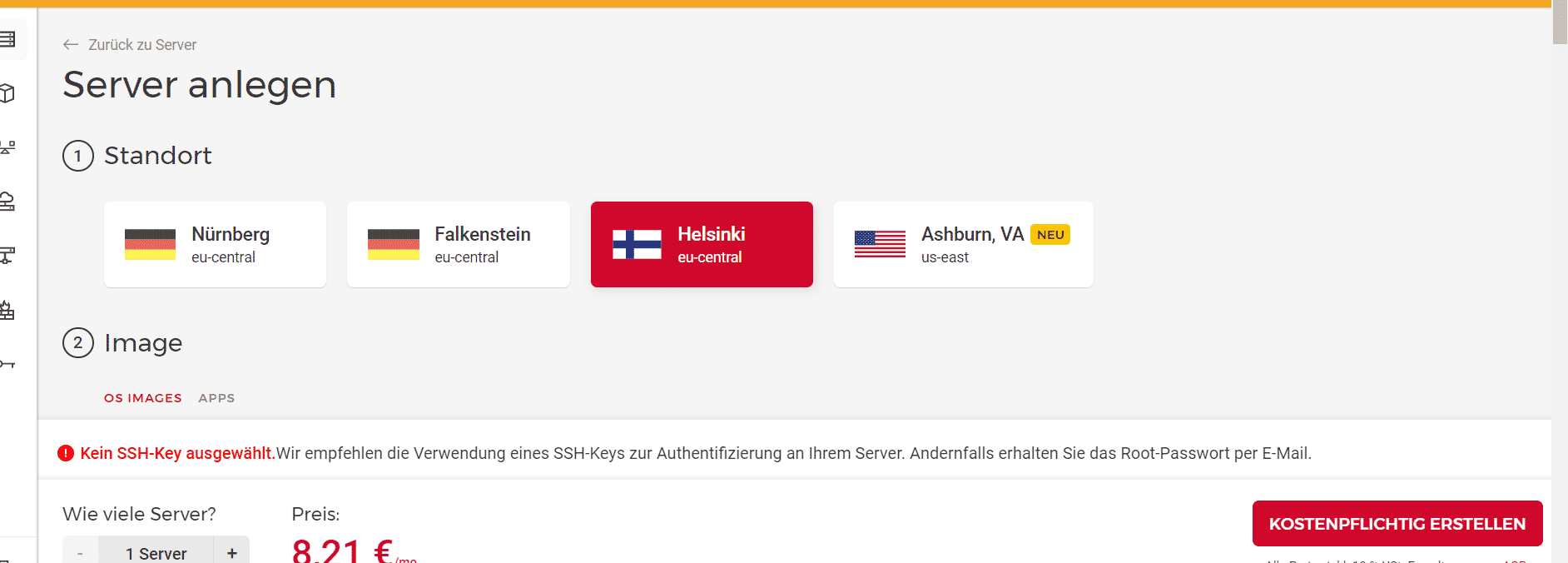
Hetzner is a German provider known for affordable hosting with high performance. Advantages include server locations in Germany (good for data protection) and an excellent price-performance ratio – comparable resources often cost many times more at AWS/Azure (AWS and Azure are At Least 4x–10x More Expensive Than Hetzner). Hetzner offers both Cloud servers (flexibly scalable, billed hourly) and Dedicated servers with full root access. For OTOBO Docker installations, Hetzner’s Cloud VPS or CX/CPX servers are popular because they support Docker out of the box. Pros: Low prices, fast hardware (NVMe-SSDs, AMD EPYC/Intel Xeon CPUs), simple management via a web console, data storage in German data centers. Cons: No globally distributed network – data centers are primarily in DE (and Finland), making it less ideal for international users with latency requirements. Additionally, you must administer the system yourself (no managed support in the basic plan). Overall, Hetzner is ideal for experienced users or companies that want to host cost-efficiently in Germany.
AWS is a global cloud market leader and offers a huge selection of services. For OTOBO hosting, you can use, for example, Amazon EC2 instances (virtual Linux servers) or managed database connections via RDS. Pros: Maximum flexibility and scalability – you can scale server performance up or down as needed, use load balancing and auto-scaling, and choose from many regions worldwide. There are also numerous additional services (backup, monitoring, CDN) that can be integrated into the OTOBO setup. Cons: Costs – AWS is significantly more expensive than Hetzner for the same hardware performance (AWS and Azure are At Least 4x–10x More Expensive Than Hetzner), especially when resources are booked permanently. The price structure is complex (e.g., costs for traffic, storage, backups are extra), which can be confusing for beginners. Furthermore, AWS requires expertise, as the multitude of options makes configuration more complex. AWS is particularly worthwhile for large deployments or if you value global availability and managed services. For a medium-sized company operating OTOBO independently, the extra costs of AWS are often not justified.
Azure (by Microsoft) is – similar to AWS – a global cloud platform with extensive services. Azure offers Linux VMs for Docker as well as container services (e.g., Azure Container Instances or AKS, if you want to use Kubernetes). Pros: Good integration into Microsoft ecosystems – ideal if you already use Microsoft services (Azure AD for Single Sign-On, Office 365 integration, etc.). Azure has data centers worldwide, including in Europe, and offers reliable infrastructure with extensive compliance certifications (important for enterprise customers). Cons: Costs and complexity are comparable to AWS – Azure is also one of the higher-priced options, especially if many resources or Windows servers are used. Management via the Azure portal requires training; for pure Linux/Docker hosts, it is sometimes overkill. If you mainly want to operate a single OTOBO system, Azure – like AWS – can seem over-dimensioned. However, it is a strong option for companies that rely on Microsoft anyway or want to integrate additional Azure services (AI, BI, etc.).
IONOS is a German hosting provider that offers classic web hosting packages as well as cloud servers and managed services. For hosting an OTOBO ticket system, a Cloud Server or VPS with Linux, on which you install Docker, is recommended at IONOS. Pros: Data location Germany (ideal for GDPR) and German-speaking support. IONOS is geared towards user-friendliness – the dashboard is beginner-friendly, and there are one-click installers for some applications (though not, as far as we know, as a ready-made image for OTRS/OTOBO as of today). In terms of price, the cloud servers are in the mid-range, often cheaper than AWS/Azure, but tend to be slightly more expensive than Hetzner for the same performance. Cons: Somewhat fewer community resources and tutorials online compared to AWS/Hetzner. Furthermore, the really cheap plans (shared hosting) are not suitable for OTOBO; you need at least a dedicated VM plan with Docker support. Overall, IONOS is a good choice if you want a German provider with support and are satisfied with a more conventional hosting environment.
If you want to avoid the technical effort, there are also Managed Hosting offers for OTOBO. In this case, a service provider takes care of installation, updates, monitoring, and backups, while you simply use the ticket system. Some specialized companies offer OTOBO Managed Hosting.
Once you have successfully installed OTOBO, you should follow some best practices to make operations as secure, fast, and reliable as possible. Here are the most important recommendations regarding performance, security, and backups:
Use Caching and Search Index: OTOBO already includes Redis for caching and Elasticsearch for full-text search via Docker. Ensure that these containers are activated (otobo_redis_1 and otobo_elastic_1 run by default) – they significantly improve performance (faster page loads, faster search results). Without Elasticsearch, the database must search through all ticket text, which is slower.
Allocate Sufficient Resources: Monitor the CPU and memory usage of your server. With many simultaneous agents or tickets, 4 GB of RAM can become tight – scale to 8 or 16 GB before the system starts swapping. The same applies to the CPU: more cores help with many parallel requests. If necessary, use dedicated database servers if the load is very high (in Docker, you can also outsource the DB to a separate host).
Manage Ticket Count: Do not leave tens of thousands of open tickets in the active queue. Archive or close old tickets regularly. OTOBO has functions for archiving tickets, which relieves the ticket lists and search indexes. Furthermore, with a very large number of tickets, switching to the static ticket index can be useful (Performance Tuning — OTOBO Installation Guide 10.1 documentation) (Performance Tuning — OTOBO Installation Guide 10.1 documentation) – this is usually only necessary with >80,000 open tickets.
Optimize File Storage: By default, OTOBO stores attachments as files on the volume. This is more performant than storage in the DB. Ensure that the volume (otobo_opt_otobo in Docker) is on fast storage. If necessary, you can place the attachments directory on a separate partition. Keep enough free disk space available – otherwise, the disk could fill up with many large attachments, causing the system to stop.
Set Up Monitoring: Monitor your system (CPU, RAM, DB performance, Docker container health). Early warnings for high load or errors allow for proactive action. Docker offers simple live data per container with docker stats. For long-term monitoring, tools like Prometheus/Grafana or CloudWatch (for AWS) can be used.
Apply Updates and Patches: Keep OTOBO itself as well as the operating system and Docker up to date. Security updates from the OTOBO project should be installed promptly (with Docker, simply pull a new image and restart the container). Also, regularly update the Perl modules and libraries used if you have a manual system.
Use HTTPS: Protect the web interface with SSL/TLS. In the Docker environment, you can either use the included Nginx proxy (see .env option for HTTPS) or place an external proxy/web server in front of it. Free certificates from Let’s Encrypt can be integrated automatically. This ensures that login information and sensitive ticket content are transmitted in encrypted form.
Strong Passwords & 2FA: Enforce complex passwords for all agent accounts. Change the default admin password immediately after installation. OTOBO offers two-factor authentication (OTP) for agents (OTOBO/Znuny and OTRS ((Community Edition)) Introduction - Get Started | OTOBO) – consider activating this to secure access even better.
Secure Access: If possible, restrict external access to the OTOBO interface. For example, VPN or a fixed IP whitelist could be used for the agent interface if only employees need to access it internally. At the very least, the admin dashboard URL should not be exposed to the internet. Also, use firewalls (UFW, iptables, or cloud security groups) to open only the necessary ports (HTTP/HTTPS, SSH). The database and Redis/Elasticsearch ports should not be publicly accessible.
Server Hardening: On Linux servers, turn off unused services and install only necessary software. Configure regular security scans. If you use RHEL/CentOS, note that SELinux can restrict Docker containers – either configure the required permissions or disable SELinux, otherwise OTOBO may not function correctly.
Regular Backups: Perform daily backups of the OTOBO database and important file directories. In Docker environments, you can, for example, create a MySQL dump with docker exec and back up the files from the volume. Automate this via a cronjob. Keep backups on external systems or storage (e.g., cloud storage) so that they are available even in the event of a server failure.
Test Backup Strategy: Check your backups regularly by performing test restores. Nothing is worse than a backup that turns out to be unusable in an emergency. OTOBO offers official instructions for backup and restore; follow these and document the process internally.
Document Configuration: Keep a record of which adjustments you have made to the OTOBO configuration (e.g., in SysConfig, additional packages/addons, cronjobs). In the event of an error or during updates, this helps to isolate problems faster. Export important settings and keep versions of the Docker Compose files or .env under version control.
Plan Updates: Schedule maintenance windows for OTOBO upgrades. With a Docker-based setup, an update can mean pulling new containers. Make a backup beforehand, check the release notes, and ideally test the upgrade in a staging environment. This keeps your system secure and compatible in the long term.
Despite good preparation, problems can occur during operation. Here are some common problems with OTOBO hosting (especially in Docker setups) and tips for troubleshooting:
Web Interface Not Reachable: If the OTOBO web interface does not load, first check whether all Docker containers are running: docker-compose ps should show “Up (healthy)” for web, db, etc. Ensure that the port (default 80 or 5000) is open in the firewall. When accessing via a domain, check the DNS setting and the .env configuration (FQDN). Solution: Run docker-compose logs web to get hints about errors. Often, a docker-compose restart of the affected services helps. For Connection refused errors, ensure that no other service is blocking the port.
Performance Problems: The system reacts sluggishly or hangs? Check whether the server might have insufficient memory (swap usage) or the CPU is overloaded. Often, too little RAM is the cause – MySQL then struggles. Solution: Allocate more RAM/CPU or scale to a larger server. Also, check whether Redis and Elasticsearch are running correctly – without cache and index, OTOBO becomes significantly slower. A look at the OTOBO system log (admin area or otobo.log file) can show whether, for example, queries are taking too long. If necessary, archive old tickets to keep the active data volumes small.
E-Mail Sending or Retrieval Fails: OTOBO retrieves emails from mailboxes and sends mail via SMTP. If this does not work, it is often due to incorrect settings or connection problems. Solution: Open the SysConfig in OTOBO and check the mail account settings (server, port, user, password). For Office 365/Exchange, modern authentication methods or app passwords may need to be used. Monitor the OTOBO log for error messages during mail retrieval (keyword IMAP/POP errors) or sending (SMTP errors). A typical error is, for example, “Authentication failed” – then the access data is incorrect. For SSL/TLS problems (certificate errors), ensure that the container trusts the mail server (if necessary, install a CA certificate). Server firewall settings can also be the problem – allow outgoing connections on port 993 (IMAPS) and 587/465 (SMTPS) in the server firewall.
Docker Container Problems (Crashes, Permissions): If containers stop unexpectedly or restart (crash loop), look for error messages with docker-compose logs. A common stumbling block is file permissions on the mounted volumes. The OTOBO container runs as user otobo (UID 1000) – ensure that the directories on the host give this UID write permissions. An indication of this is error messages like “Permission denied” in the logs. Solution: When in doubt, run the script otobo.SetPermissions.pl (in the container under /opt/otobo/bin/) to set the permissions correctly. Or adjust the owner on the host (chown -R 1000:1000 ./otobo-docker/opt_otobo). Another problem can be missing environment variables – if docker-compose up aborts immediately, check whether all variables required in the .env are set. Example: If the MYSQL_ROOT_PASSWORD is missing, the DB will not start. Consult the documentation for required .env entries.
Backup/Restore Errors: When importing a backup, errors can occur, e.g., incompatible database version or missing files. Solution: Ensure that the same OTOBO version that created the backup is used. First, import the database (e.g., via mysql < backup.sql in the DB container) and then restore the file attachments and configuration files. Then set the permissions correctly. After the restore, check the OTOBO logs and the system configuration. For larger version jumps, run the migration script (otobo.Console.pl Maint::Database::Migration) if necessary. When in doubt, you will find further help in the OTOBO Documentation under Backup and Restore.
Through careful planning and attention to these notes, both beginners and advanced users can achieve successful OTOBO hosting. From choosing the right infrastructure to optimal installation and ensuring security and performance – with the guide above, you will get the most out of your OTOBO ticket system. For questions or complex environments, do not hesitate to refer to the extensive OTOBO documentation and the community, or consult an experienced OTOBO service provider. Good luck with your OTOBO server!
Plan OTOBO hosting and operations
Softoft can help with architecture, Docker operations, monitoring, backups, and ongoing technical support.
Yes. Self-hosted Docker is a common approach; size CPU, RAM, and disk to the hardware requirements in this guide.
The guide compares options such as Hetzner, AWS, and Azure so you can pick a provider for your OTOBO server.
Plan backups, TLS/security hardening, and whether you want managed hosting versus running the stack yourself.
OTOBO is a versatile open-source ticket system (a fork of the ((OTRS)) Community Edition) for helpdesks and service management. Companies can use it to manage customer inquiries and internal tasks efficiently. Unlike cloud solutions, OTOBO is free, but it must be operated on your own server –…
AWS is a global cloud market leader and offers a huge selection of services. For OTOBO hosting, you can use, for example, Amazon EC2 instances (virtual Linux servers) or managed database connections via RDS. Pros: Maximum flexibility and scalability – you can scale server performance up or down as…