
OTOBO GUI & User Interface — Agent Dashboard Explained
In this guide: Overview of the OTOBO agent interface — navigation, ticket views, and customization options.
Related: Skins & themes · Customer portal · OTOBO demo · Get support
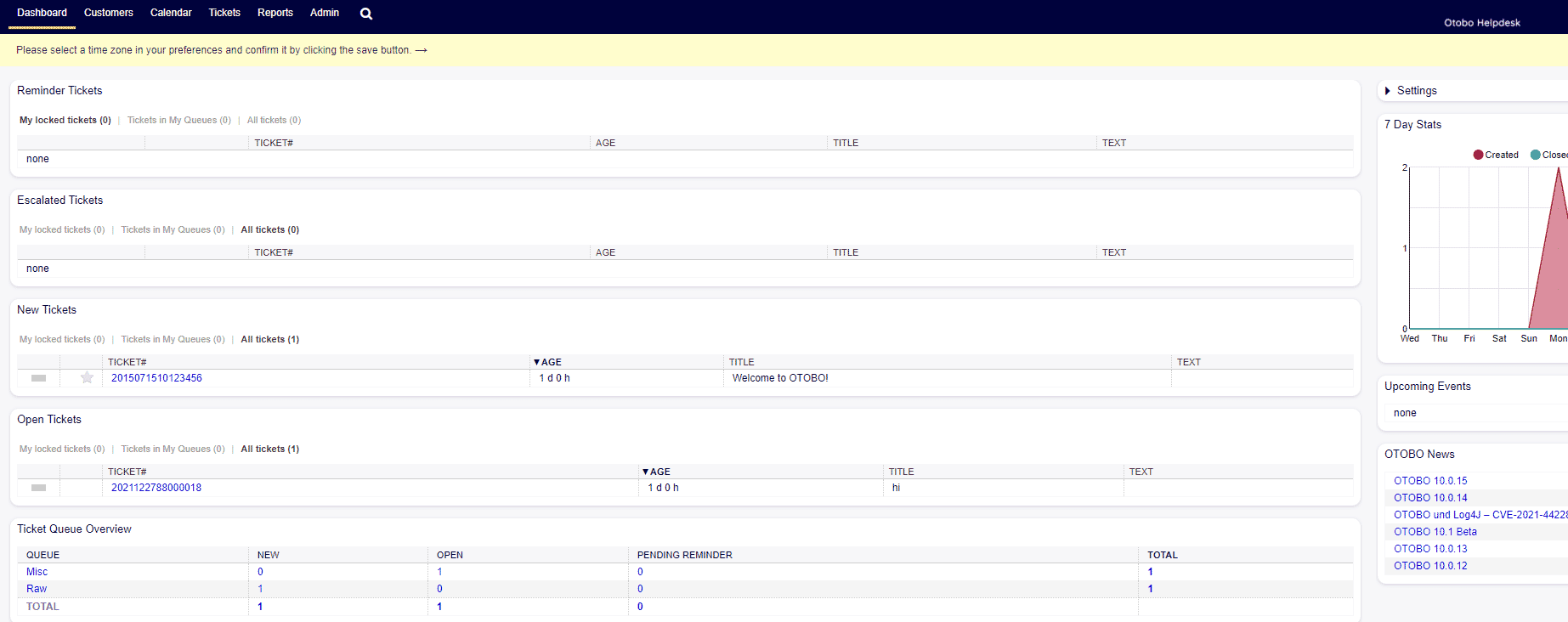 The OTOBO GUI is the agent user interface for daily support work: a dashboard of open tickets, ticket overview and detail views, search, and clear navigation — customizable with skins, widgets, and roles.
Structure and Navigation of the OTOBO GUI
Section titled “Structure and Navigation of the OTOBO GUI”The OTOBO GUI is clearly structured and allows agents and administrators to quickly access all necessary functions. The main components of the GUI are:
- Dashboard: The dashboard provides an overview of current tickets, escalations, and tasks. Agents can view ticket status at a glance and prioritize their work.
- Ticket overview: Lists all tickets assigned to an agent or a specific queue. Tickets can be filtered by priority, creation date, type, and other criteria.
- Ticket detail view: Agents open a ticket to read correspondence, write responses, add internal notes, and update fields. All previous actions are listed chronologically in the ticket history.
- Navigation menu: The sidebar menu provides quick access to ticket overviews, administration, reports, and other OTOBO modules.
- Search and filter: Full-text search and saved filters help agents find specific tickets, customers, or topics quickly.
Customization Options for the OTOBO GUI
Section titled “Customization Options for the OTOBO GUI”A major advantage of the OTOBO GUI is its adaptability. Companies can design the user interface to meet their specific requirements. Some of the customization options include:
- Themes and layouts: OTOBO supports custom skins and CSS overrides so colors, logos, and layout can reflect your corporate brand. See OTOBO skins & themes for setup instructions.
- Widgets: Dashboard widgets display open tickets, escalations, queue distribution, and other KPIs. Each agent can configure which widgets appear on their dashboard.
- Roles and permissions: Depending on the user’s role (agent, admin, customer), the GUI shows only the functions they are allowed to use. Administrators define roles and permissions in the admin area.
- Customer portal: The customer-facing interface can be branded separately from the agent GUI, with its own layout and self-service options.
Advantages of the OTOBO User Interface
Section titled “Advantages of the OTOBO User Interface”The OTOBO GUI offers many advantages that optimize daily work in customer service:
- Intuitive operation: The clear structure helps new users get started quickly, while experienced agents process tickets with fewer clicks.
- Flexibility: Layout, widgets, and color schemes can be changed without modifying core application code.
- Optimized workflows: The GUI integrates with automations and process management that handle recurring tasks such as ticket assignment and notifications.
- Mobile support: OTOBO provides a responsive interface that works on tablets and smartphones as well as on desktop browsers.
Next steps
Section titled “Next steps”Want to see the GUI in action or tailor it to your team?
- Try it yourself: Explore the agent and customer interfaces in our free OTOBO demo.
- Customize the look: Follow the skins & themes guide to match OTOBO to your corporate branding.
- Professional help: For implementation, custom skins, or workflow design, see Softoft OTOBO & Znuny services or contact us. More options are listed on support & consulting.
Frequently asked questions
What are the core components of the OTOBO agent GUI?
The OTOBO agent Graphical User Interface (GUI) is designed for daily support work, offering a structured environment for managing tickets. Its core components include the Dashboard, which provides an immediate overview of current tickets, escalations, and tasks, allowing agents to quickly prioritize their workload. The Ticket overview lists all tickets assigned to an agent or queue, with filtering options by priority, creation date, and type. For detailed work, the Ticket detail view allows agents to read correspondence, write responses, add internal notes, and track the chronological history of all actions. Navigation is facilitated by a sidebar menu for quick access to various modules, complemented by robust search and filter capabilities to locate specific tickets or customers efficiently.
Quellen / Sources:
How can agents and administrators customize the OTOBO user interface?
The OTOBO user interface offers extensive customization options to align with specific organizational needs and branding. Themes and layouts can be modified using custom skins and CSS overrides, allowing companies to integrate their logos, colors, and overall layout. This ensures the interface reflects corporate branding, with detailed setup instructions available in the OTOBO skins & themes guide. Agents can personalize their Dashboard widgets to display relevant KPIs such as open tickets, escalations, or queue distribution. Furthermore, Roles and permissions define what functions are visible and accessible to agents, administrators, and customers, ensuring a tailored experience based on their responsibilities. The Customer portal can also be independently branded and configured, offering distinct self-service options for end-users.
Quellen / Sources:
What benefits does the OTOBO GUI offer for daily customer service operations?
The OTOBO GUI significantly enhances daily customer service operations through several key advantages. Its intuitive operation ensures that new users can quickly get started, while experienced agents can process tickets with minimal clicks, boosting efficiency. The interface boasts high flexibility, allowing for changes to layout, widgets, and color schemes without altering the core application code, making it highly adaptable to evolving business needs. OTOBO also supports optimized workflows by integrating with automation and process management features, which can handle recurring tasks like ticket assignment and notifications, streamlining operations. Additionally, the GUI provides mobile support, featuring a responsive design that functions seamlessly across desktop browsers, tablets, and smartphones, enabling agents to work from anywhere.
Quellen / Sources:
How does OTOBO's navigation system help agents manage tickets efficiently?
OTOBO's navigation system is designed for efficient ticket management, providing agents with quick and structured access to all necessary functions. The sidebar navigation menu is a central hub, offering immediate access to ticket overviews, administration panels, reports, and other OTOBO modules. This structured menu reduces the time spent searching for specific functionalities. Complementing the menu are powerful search and filter capabilities. Agents can use full-text search to quickly find specific tickets, customers, or topics. Saved filters allow for rapid access to predefined views of tickets, such as "my open tickets" or "escalated tickets," enabling agents to prioritize and manage their workload effectively. The combination of clear navigation and robust search tools ensures agents can locate and act on information promptly.
Quellen / Sources:
Where can users find resources to explore or get professional help with the OTOBO GUI?
Users interested in exploring the OTOBO GUI or seeking professional assistance have several resources available. To experience the interface firsthand, a free OTOBO demo is available, allowing users to interact with both the agent and customer interfaces. For customizing the visual appearance, the skins & themes guide provides detailed instructions on how to match OTOBO to corporate branding through custom layouts and CSS. For more in-depth needs, such as implementation, custom skin development, or workflow design, professional help is available through Softoft OTOBO & Znuny services. Users can also directly contact Softoft for support or consult the broader support & consulting page for additional options and resources.
Quellen / Sources:
What is the OTOBO Dashboard and how does it support agents in their daily work?
The OTOBO Dashboard serves as the central starting point for agents, offering a comprehensive overview of their daily support work. It is designed to provide critical information at a glance, including current tickets, escalations, and pending tasks. This immediate visibility allows agents to quickly assess their workload, identify high-priority items, and make informed decisions about task prioritization. Agents can configure which widgets appear on their dashboard, tailoring the display to show relevant Key Performance Indicators (KPIs) such as open tickets, queue distribution, or specific alerts. This personalized overview helps agents stay organized, monitor their performance, and ensure that urgent issues are addressed promptly, thereby optimizing their workflow and overall efficiency.
Quellen / Sources: