
OTOBO Ticket Notifications
Optimize your internal and external communication with the ticket notifications of OTOBO, your industry leader in email communication management. By setting up automated notifications at critical points in the ticket lifecycle, you can not only optimize your agents’ working time and reduce errors, but also improve your customer relationships by always providing up-to-date information and transparent communication.
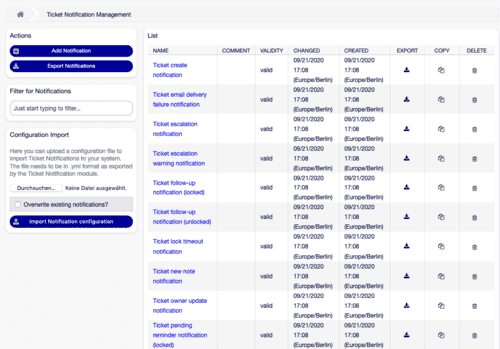
Managing Ticket Notifications
Section titled “Managing Ticket Notifications”To get the full benefit of OTOBO, the correct configuration of ticket notifications is essential. In just a few steps, you can add new notifications, adjust existing ones, or remove those that are no longer needed, leading to an improved communication flow. Here are the steps for effective management:
Adding a new ticket notification
Section titled “Adding a new ticket notification”- Select Add notification in the left menu.
- Fill in all required fields according to the guidelines in the
Ticket notification settings. - Click Save to activate the notification.
Editing an existing ticket notification
Section titled “Editing an existing ticket notification”- Find the notification you want to edit in the list and select it.
- Change the settings as needed, based on the guidelines in
Ticket notification settings. - Save your changes with Save or Save and finish.
Deleting a ticket notification
Section titled “Deleting a ticket notification”- Click on the trash icon next to the corresponding notification.
- Confirm the deletion process by clicking Confirm.
Exporting and importing ticket notifications
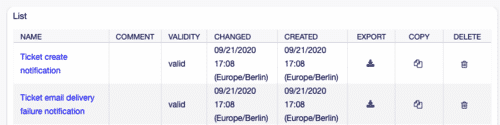
Section titled “Exporting and importing ticket notifications”Export all your ticket notification settings securely to an Export_Notification.yml file or import
predefined configurations to quickly customize your OTOBO installation. This is particularly useful when
transitioning between systems or when backing up configurations.
Configuration options for ticket notifications
Section titled “Configuration options for ticket notifications”With OTOBO, you can make in-depth adjustments to notification settings to communicate exactly the information that you and your customers need. Each notification can be configured individually to optimally meet the requirements of your agents and customers.
Basic settings
Section titled “Basic settings”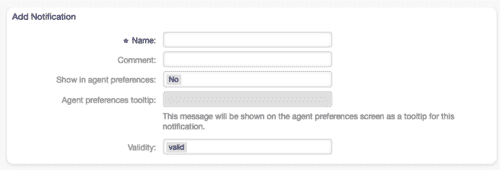
Name *: Enter a meaningful name for the notification. This name helps with identification in the overview.
Comment: Use this area for additional information or descriptions of your notification to simplify management.
Show in agent settings: Choose whether this notification should be visible in the agents’ settings to allow for targeted adjustment to the way your agents work.
With these customization options from OTOBO, you ensure that your ticket notifications are not only effective but also designed efficiently. Use these features to increase productivity, improve customer relationships, and optimize your communication processes.
Continuation of configuration options: Agent settings for ticket notifications
Section titled “Continuation of configuration options: Agent settings for ticket notifications”In the agent settings, you determine how agents can interact with your ticket notifications to create an efficient work environment.
-
Yes: This option allows the notification to be visible in the settings for agents. Agents have the freedom to decide for themselves whether they want to activate this notification or not.
-
Yes, but at least one active notification method is required.: This setting also displays the notification in the agent settings but mandates that at least one notification method is active. This requirement is indicated by an asterisk next to the name.
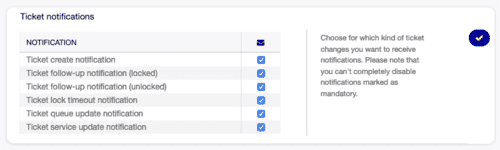
Tooltip in agent settings: A tooltip provides additional information or assistance regarding the respective notification in the agent settings.
Validity *: A crucial point for activating the notification. It can only be used in your OTOBO system if it is marked as valid. Marking it as invalid or temporarily invalid means that the notification will be deactivated.
Triggering events
Section titled “Triggering events”
Event: Determine which events should trigger a notification. An additional ticket filter can help to send notifications only for tickets with specific criteria.
Ticket filter (optional restrictions)
Section titled “Ticket filter (optional restrictions)”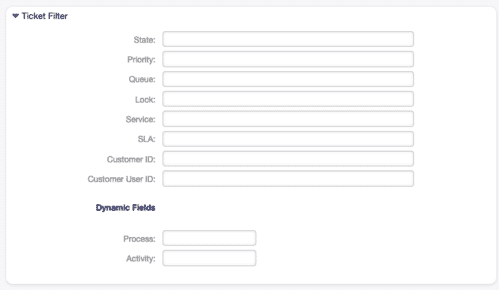
Status, Priority, Queue, Lock, Customer ID, Customer User ID: These filters offer you the possibility to define more precisely under which ticket conditions a notification is triggered.
Dynamic fields: A powerful tool for filtering based on specific fields stored in the system. This improves the flexibility and customization of the notifications.
Article filter
Section titled “Article filter”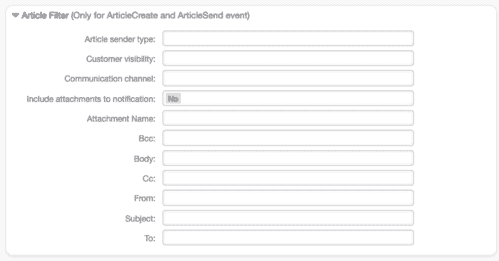
Use the article filters to configure notifications based on specific conditions in the article history, such as communication channel, attachments, or visibility from the customer’s perspective. This allows for even more precise control over when notifications are sent.
Recipients of the notifications
Section titled “Recipients of the notifications”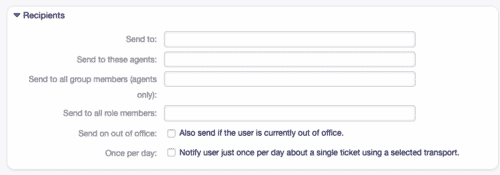
Send to: Select specifically who within your team should receive the notifications. You have the option to restrict notifications to the role, the team, or individual agents to ensure that only relevant people are informed.
With these detailed customization options, OTOBO ensures that your team is informed effectively without being overwhelmed by unnecessary notifications. By intelligently using these features, you can optimize communication within your team as well as with your customers and take it to a new level. The efficient setup and targeted management of ticket notifications are crucial for maintaining productive workflows and excellent customer relationships in OTOBO. Here are advanced options through which you ensure that the right team members receive the required information at the right time:
Setting recipients for ticket notifications
Section titled “Setting recipients for ticket notifications”You have a variety of options to choose from to ensure that notifications are delivered precisely:
- Agent who created the ticket
- Agent responsible for the ticket
- Agent who is the owner of the ticket
- All agents subscribed to both the queue and the service of the ticket
- All agents subscribed to the queue of the ticket
- All agents subscribed to the service of the ticket
- All agents watching the ticket
- All agents with write permission for the ticket
- All recipients of the first article
- All recipients of the last article
- Customer user of the ticket
Send to these agents: Select specific agents who should receive notifications.
Send to all members of a group (agents only): Select groups whose members should receive the notifications.
Send to all members of a role: Determine roles whose associated agents should be informed.
Send if absent: The notification is also sent to absent agents to ensure seamless communication.
Once per day: Limits notifications about a ticket to once per day to avoid flooding.
Detailed notification methods
Section titled “Detailed notification methods”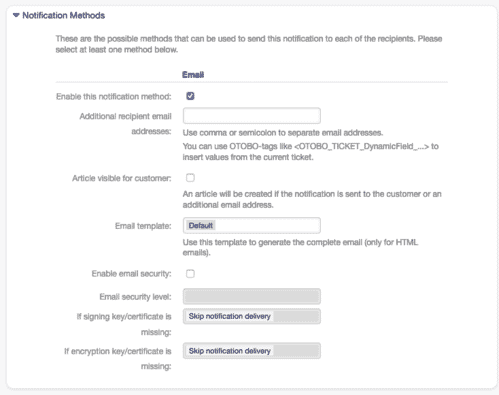
Activate this notification method: Choose whether the method should be active. Options can include email, web view, or SMS.
Additional email addresses of recipients: Add additional recipients. Use commas or semicolons to separate the addresses.
Article visible for customers: Determines whether the sent article is visible to the customer.
Email template: Select the email template that should be used for notifications. You have the option to create and add your own templates.
Activate email security: Activate this option to encrypt notification emails, which can be essential for sensitive information.
Email security level: Determine whether emails should be signed, encrypted, or both. Options for PGP and S/MIME are available, depending on the system configuration.
With these flexible and robust options, OTOBO provides you with all the tools you need to design precise and secure internal communication. The ability to send messages based on specific criteria and events while considering email security makes OTOBO the optimal solution for your ticket and communication management. Use these features to maximize your team’s efficiency and ensure the satisfaction of your customers.
Secure communication via email encryption
Section titled “Secure communication via email encryption”For secure communication, S/MIME encryption and signing of emails are indispensable, especially for sensitive data exchanged between your company and the customers or within the team. OTOBO allows you to secure your notification emails accordingly:
- Sign and encrypt S/MIME: Ensure that your notification emails are signed and encrypted with an S/MIME certificate to guarantee authenticity and confidentiality. Only the intended recipients can decrypt the messages and verify their origin.
If signing key/certificate is missing: Decide how to proceed if no signing key or certificate is available.
If encryption key/certificate is missing: Choose the alternative action if the necessary encryption key or certificate is not present.
Localized and personalized notification texts
Section titled “Localized and personalized notification texts”The ability to design notification texts individually and in different languages makes your communication more effective and personal. OTOBO supports you with:
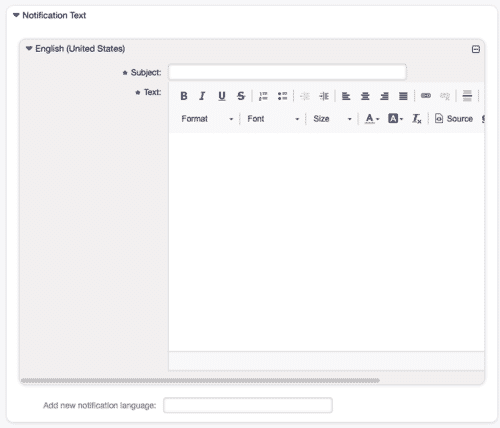
Subject * and Text *: Design the notification content language-specifically with subject lines and message texts that clearly and directly convey what the recipient needs to know.
Add new notification language: Expand the reach of your notifications by inserting additional languages that meet the requirements of your international customers or team members.
Using OTOBO tags
Section titled “Using OTOBO tags”Customizing messages through OTOBO tags enables direct and relevant communication. Personalized messages establish a valuable connection and increase the response rate.
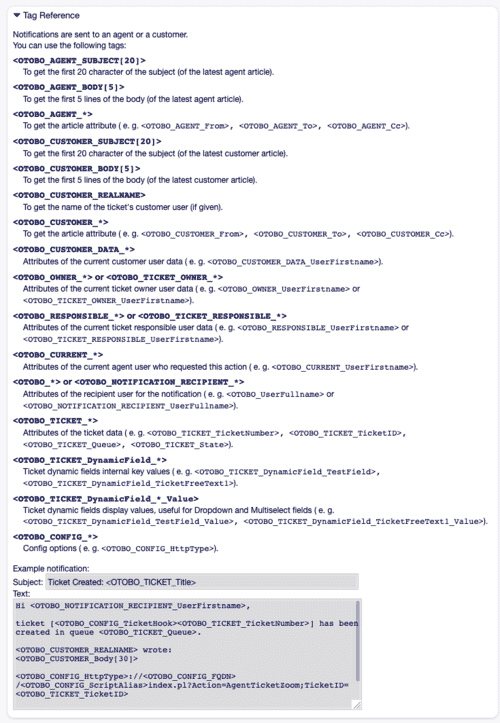
For example, including <OTOBO_TICKET_TicketNumber> leads directly to the ticket number in the message text.
This promotes efficient communication and improves the
user experience through immediate reference to specific processes.
Optimizing appointment reminders
Section titled “Optimizing appointment reminders”Managing appointments and ensuring that neither customers nor team members miss important appointments is a challenge that OTOBO solves elegantly. With appointment notifications, you can rely on the fact that no one will overlook important events and deadlines.
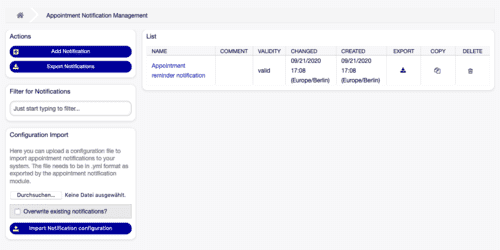
Configuration of appointment notifications
Section titled “Configuration of appointment notifications”Setting up appointment reminders is simple:
- Click on the Add notification button in the left menu.
- Enter meaningful information into the required fields, based on the guidelines in
Appointment notification settings. - Click Save to activate the notification.
OTOBO’s appointment notification system ensures that all relevant parties are informed in a timely and effective manner, thereby improving the customer experience and keeping the team efficiently organized. Use these features to improve operational processes in your company and ensure that important events receive the attention they deserve.
Editing appointment notifications
Section titled “Editing appointment notifications”Editing appointment notifications in OTOBO allows you to precisely adapt the notification details to your current needs at any time:
- Select the desired notification from the list of appointment notifications to edit.
- Adjust the necessary settings according to the requirements as described in
Appointment notification settings. - Save your changes with Save or select Save and finish to complete the process.
Deleting appointment notifications
Section titled “Deleting appointment notifications”Deleting notifications that are no longer needed keeps your system clear and efficient:
- Use the trash icon next to the notification that should be removed.
- Confirm your selection by clicking Confirm to permanently remove the notification.

Exporting and importing appointment notifications
Section titled “Exporting and importing appointment notifications”For backups or for transferring settings between different OTOBO installations, OTOBO supports the export and import of appointment notification settings:
- To export all notifications, select Export notifications and save the
Export_Notification.ymlfile in a secure location. - To import, navigate to Browse…, select a previously saved
.ymlfile, and follow the steps to adopt the notification definitions into your system.
Detailed appointment notification settings
Section titled “Detailed appointment notification settings”Basic settings
Section titled “Basic settings”The basis of your appointment notifications is the solid definition of the main features:
- Name *: Unique identification of your notification definition.
- Comment: Provides space for additional explanations and information about the notification.
- Show in agent settings: Determine whether and how agents can see and manage the notification in their settings.

Appointment events
Section titled “Appointment events”For effective appointment management, specific events can serve as triggers for notifications:
AppointmentCreate: Activated as soon as a new appointment is created.

Through the finely tuned notification system of OTOBO, your team remains informed and can react efficiently to the requirements of everyday work. With the ability to create, edit, and personalize notifications, OTOBO offers the necessary flexibility to ensure a high level of organizational and communication efficiency. Use these tools to ensure that your team never misses an important appointment again and strengthens customer relationships through precise and timely communication.
Efficient management of appointment notifications in OTOBO
Section titled “Efficient management of appointment notifications in OTOBO”Event-triggering appointment events
Section titled “Event-triggering appointment events”The flexibility of appointment notifications in OTOBO allows for the automated handling of various scenarios by defining events as triggers for notifications:
-
AppointmentUpdate: Notifies when changes have been made to an appointment so that the involved persons are informed about the update. -
AppointmentDelete: Sent as soon as an appointment is deleted. This ensures that all participants are aware of the cancellation. -
AppointmentNotification: A special event for time-controlled notifications that ensures participants receive reminders for upcoming appointments in time. -
CalendarCreate&CalendarUpdate: Notifications in connection with the creation or modification of a calendar promote transparency within the team regarding new or changed event schedules.
Targeted appointment filter
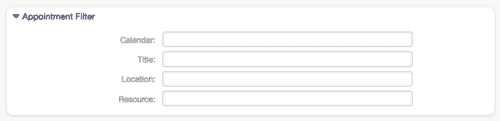
Section titled “Targeted appointment filter”To maximize the relevance of notifications, OTOBO allows for the creation of precise appointment filters that ensure only truly relevant appointments trigger a notification:
- Calendar
- Title
- Location
- Resource
These filters support focusing notifications on specific conditions and avoid flooding due to irrelevant message traffic.
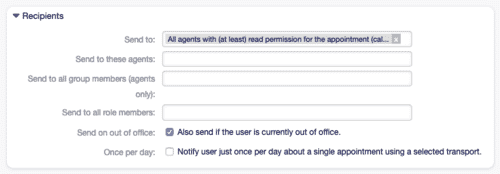
Selection of recipients
Section titled “Selection of recipients”Targeted control over who should receive a notification maximizes effectiveness:
- Direct selection of agents who hold certain roles or are members of certain groups and teams.
- “Send if absent” and “Once per day” options help to intelligently control the dissemination of information while avoiding redundant messages.
Notification options
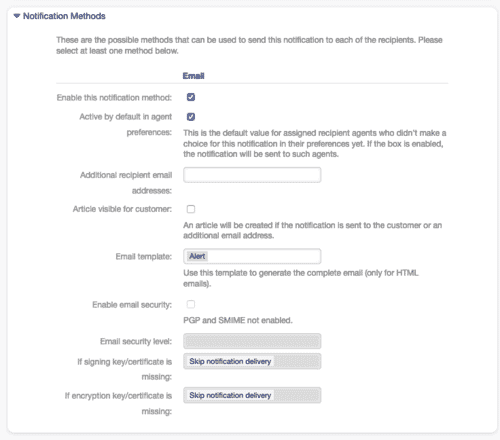
Section titled “Notification options”The flexibility in the communication method, including email, SMS, or web view, as well as the ability to specifically customize email templates, supports clear and consistent communication according to the needs and preferences of the recipients:
- Email templates support a standardized but personalized form of communication.
- The option to add additional email recipients expands the communication radius beyond the immediate team.
Summary
Section titled “Summary”With OTOBO’s comprehensive system for appointment notifications, organizations can seamlessly orchestrate communication regarding appointments and events. The clever use of event triggers, precise filters, selective recipient options, and customizable notification methods contributes to increasing operational efficiency and customer satisfaction by ensuring that all participants are always informed about time-critical appointments and can act accordingly.
Increasing security and personalization in OTOBO appointment notifications
Section titled “Increasing security and personalization in OTOBO appointment notifications”Security settings for email notifications
Section titled “Security settings for email notifications”The security of communication is of crucial importance in modern IT environments. OTOBO allows you to encrypt and sign notification emails with state-of-the-art security standards to ensure the integrity and confidentiality of your data:
-
Activate email security: With this option, you can decide whether and how notification emails are encrypted to ensure secure information exchange.
-
Email security level: Here you have the choice between different security levels, including PGP and S/MIME. Depending on whether you want to sign your emails only, encrypt them only, or do both, you can select the appropriate option, provided the corresponding keys or certificates are stored in the system.
![Email security settings for optimal communication security [1]](https://softoft.sirv.com/Images/otobo/docs/appointment-notification-settings-notification-methods)
Customizing notification texts
Section titled “Customizing notification texts”Personalized and localized notification texts ensure effective communication with recipients from different cultural backgrounds and with different language skills:
-
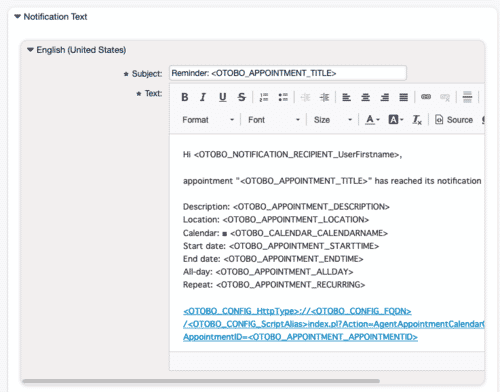
Subject * and Text *: You have the option to design the notification text individually for each language. By using localized subject lines and text, you can ensure that recipients not only understand your messages but also feel directly addressed.
-
Add new notification language: This flexible function allows you to expand the pool of previously defined languages to reach an even broader audience. The chosen language is primarily based on the settings of the customers or agents, and secondarily on the system’s default setting.
Variables in OTOBO notifications
Section titled “Variables in OTOBO notifications”Variables are powerful tools that enable dynamic and personal communication in automated notifications. In OTOBO, these variables are called tags and are automatically filled with relevant information before the message is sent:
- Variables: By inserting OTOBO tags into your notification texts, you can ensure that every notification contains specific details such as appointment times, locations, or participant information. This not only increases the relevance and information content of your messages but also improves recipient engagement.
Summary
Section titled “Summary”Through the targeted adjustment of notification settings and the implementation of comprehensive security measures, OTOBO provides a powerful tool to effectively master the challenges of appointment management in a connected and globalized working world. The combination of flexibility, security, and personalization makes OTOBO the ideal solution for organizations that value efficient communication and data protection.
Dynamic variables in notifications for effective communication
Section titled “Dynamic variables in notifications for effective communication”The dynamic adjustment of notification content through variables allows information to be communicated
accurately and contextually. A concise example shows the application of the variable
<OTOBO_APPOINTMENT_TITLE[20]>, which extracts only the first 20 characters of an appointment title:
Title: <OTOBO_APPOINTMENT_TITLE[20]>In a real-world deployment, this placeholder could be expanded to “Title: Daily meeting in the…”, thus offering recipients a clear idea of the notification’s content even before they read it in full.
Admin notifications
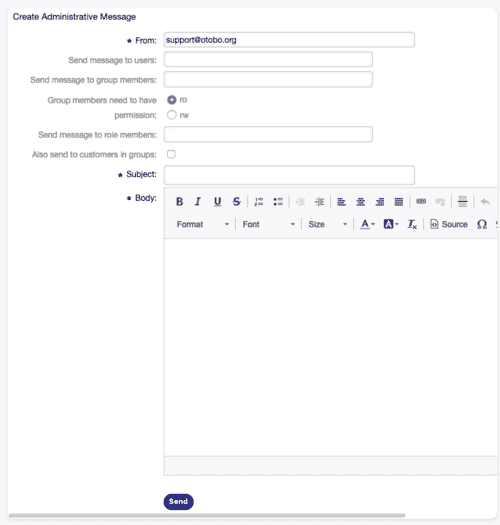
Section titled “Admin notifications”In an organization-wide IT infrastructure, such as that provided by OTOBO, the administrator’s ability to send messages quickly and in a targeted manner to specific user groups is of invaluable worth. OTOBO simplifies this process significantly and allows administrators to communicate announcements or important information precisely:
Key configurations for administrative messages
Section titled “Key configurations for administrative messages”To ensure that your message reaches the right recipients, OTOBO offers a range of configuration options that allow for precise target group selection:
-
From *: Determine the sender address of the message to ensure the authenticity of the communication.
-
Send message to users: Select individual agents who should receive the message.
-
Send message to group members: Direct your message to members of specific OTOBO groups. Additionally, you can define whether recipients must hold certain access rights to receive the message.
-
Send message to role members: Address agents who are determined by their role within OTOBO.
-
Also send to customers in groups: Expand the reach of your communication by also forwarding the message to customers in the corresponding groups.
By efficiently using these settings, you can ensure that your messages arrive precisely and in a targeted manner. This promotes clear and effective communication between administrative staff, agents, and customers.
Conclusion
Section titled “Conclusion”The ability to send specific messages in OTOBO supports administrators in sharing essential information quickly and efficiently with relevant team members or customer groups. The combination of simple user guidance and flexible configuration options makes OTOBO a powerful tool for administrative communication in any organization.
Frequently asked questions
What are ticket notifications in OTOBO?
Ticket notifications are automated messages sent to agents or customers at defined points in the ticket lifecycle.
How do I add a new ticket notification?
In Admin, choose Add notification, complete the ticket notification settings, and save to activate it.
Can I edit or delete existing notifications?
Yes. Select a notification to edit its settings, or use the trash icon and confirm to delete it. To get the full benefit of OTOBO, the correct configuration of ticket notifications is essential. In just a few steps, you can add new notifications, adjust existing ones, or remove those that are no longer needed…
What should I know about Triggering events?
!Configuration options for triggering events in ticket notifications Event: Determine which events should trigger a notification. An additional ticket filter can help to send notifications only for tickets with specific criteria.
What should I know about Secure communication via email encryption?
For secure communication, S/MIME encryption and signing of emails are indispensable, especially for sensitive data exchanged between your company and the customers or within the team. OTOBO allows you to secure your notification emails accordingly: Sign and encrypt S/MIME: Ensure that your…