
OTOBO Demo 2026 – Test the ticket system free, live
Introduction: What is OTOBO and what is it used for?
Section titled “Introduction: What is OTOBO and what is it used for?”OTOBO is a powerful and flexible open-source ticket system for companies. As helpdesk software, it supports support teams in efficiently managing customer inquiries and internal tasks. All incoming tickets (inquiries) are recorded centrally, prioritized, and can be processed by service staff. In this way, companies always maintain an overview of support cases and improve their service quality.
To get to know OTOBO, the OTOBO demo is the perfect starting point. It is a pre-configured test environment where you can try out the ticket system without any obligation. Via the official online demos – for both the agent interface and the customer portal – you get a direct insight into OTOBO without having to install it on your own server. Below, we introduce the most important features of the OTOBO demo, highlight advantages and limitations, and explain the next steps toward productive use.
Important features of the OTOBO demo
Section titled “Important features of the OTOBO demo”The OTOBO demo offers you the opportunity to interactively explore the core functions of the ticket system. You can test both the agent interface (for support staff) and the customer portal from a customer’s perspective. Some of the most important features you can experience in the demo are:
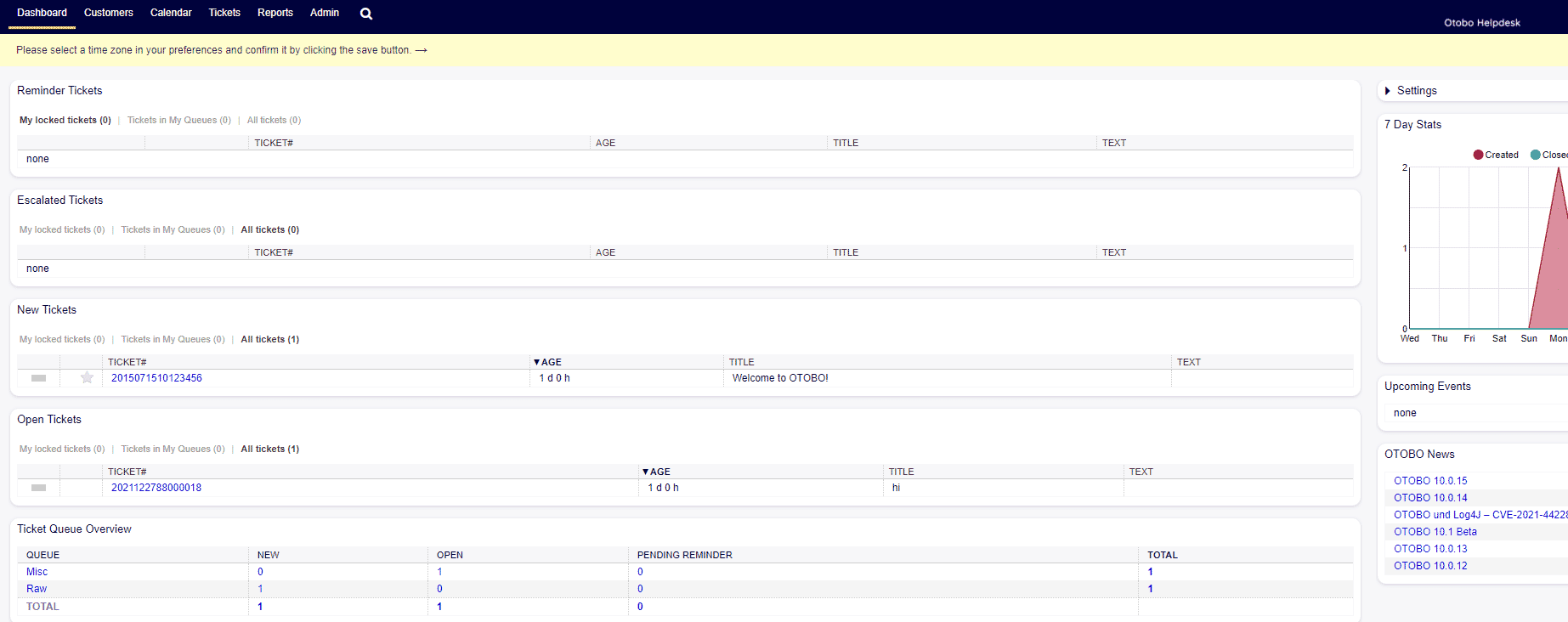
- Clear agent dashboard: As an agent, you can see all important information at a glance. You can create new tickets, open existing tickets, and view their status, priority, and assigned person. The demo shows how tickets are organized in queues and how status (open, in progress, closed, etc.) indicates the processing stage.
- Ticket creation and editing: Test how a ticket is created – including entering a title, description, priority, and assignment to a suitable queue. In the demo, agents can edit tickets, add notes, change the status, and communicate with customers via the ticket. This gives you a feel for how the daily processing of support inquiries works in OTOBO.
- Try out the customer portal: Via the customer demo, you can submit a new ticket from a customer’s perspective. You will see the web form for creating an inquiry, where customers can describe their issue and, for example, attach files. Afterward, the processing status of the ticket can be tracked in the portal. This allows you to experience how your customers will interact with the system later on.
- Automations and notifications: OTOBO offers extensive automation functions. In the demo environment, you can, for example, observe automatic email notifications for new or updated tickets. Escalation times and Service Level Agreements (SLAs) can also be visible on tickets, showing how OTOBO monitors deadlines and handles escalations.
- Reporting and statistics module: Another aspect you can view in the OTOBO demo is the statistics module. Here, frequently pre-configured reports are available, which you can use to perform analyses on tickets (e.g., number of tickets per month, average resolution time, etc.). This gives you an impression of the analysis capabilities that OTOBO offers for monitoring your support performance.
Advantages of testing with the OTOBO demo
Section titled “Advantages of testing with the OTOBO demo”Using the OTOBO ticket system demo offers you several advantages, especially if you want to test the helpdesk software without obligation first:
- No installation necessary: You can try out OTOBO directly in your browser without having to install it on your own server. This saves time and hardware resources.
- Free and without obligation: The official demo is available free of charge. You do not enter into any obligations and can take your time to get an impression of whether the ticket system fits your requirements.
- Real-time experience: Through the live operation of the demo, you experience OTOBO in a realistic environment. All functions react just as they would in a real installation. This gives you an authentic feel for the software in daily use.
- Team testing possible: Since the demo is available online, colleagues from your team can also take a look at it in parallel. Together, you can evaluate how intuitive the user interface is and which features are particularly helpful.
- Get to know the latest version: The demo is generally operated with the latest OTOBO version. You can therefore explore the most recent features and improvements of the helpdesk software directly without having to perform an update first.
Limitations of the demo environment
Section titled “Limitations of the demo environment”For all its usefulness, the public demo environment also has certain limitations that you should keep in mind:
- Shared test environment: The official OTOBO demo is used by many interested parties simultaneously. This means that the test tickets you create can also be seen by others. Therefore, do not enter any confidential data in the demo.
- Limited adjustments: In a demo, you usually cannot make administrator settings or install your own extensions. You are testing the system with a pre-configured setup. Specific adjustments that your company requires (e.g., creating new fields, connecting email mailboxes) can only be simulated to a limited extent in the demo.
- Regular reset: The demo database is often reset at regular intervals. As a result, all users always start with a fresh system. Your created test data (tickets, users, etc.) may be deleted after a reset. The demo is therefore not suitable for permanent use, but really only for short-term trial.
- Performance and speed: Since the demo runs on a shared server, performance may vary. During peak times, loading times might be slightly higher than in a dedicated installation on your own hardware.
- No integration into your own systems: You cannot connect the demo to your internal systems (such as email servers or CRM). Functions like email retrieval or API integrations can therefore only be fully tested in your own installation.
Next steps: Installation and hosting of OTOBO
Section titled “Next steps: Installation and hosting of OTOBO”If you have gained a good impression from the demo and would like to use OTOBO productively, two paths are open to you: your own installation or professional hosting.
- Install OTOBO yourself: For self-operation, OTOBO provides comprehensive resources. Take a look at our installation guide to learn step-by-step how to set up the ticket system on a server. OTOBO supports common platforms (e.g., Ubuntu/Debian Linux via Docker), and the documentation helps you with the preparation of system requirements, database setup, and configuration. With your own installation, you retain full control over the data and settings of your ticket system.
- Use professional OTOBO hosting: Alternatively, you can have OTOBO hosted by experts. OTOBO hosting by a service provider like Softoft means that professionals take care of the server infrastructure, updates, and security. You can focus entirely on your core business while the helpdesk software runs reliably in the background. This option is ideal if you do not want to perform your own server maintenance or want to start with OTOBO quickly and without technical effort.
In both cases – whether self-installation or hosting – you benefit from the fact that OTOBO is an open-source system. You have no license costs and can flexibly adapt or extend the system as needed. After testing in the demo, you now know which functions are particularly important for your team and can configure the productive environment accordingly.
Conclusion
Section titled “Conclusion”The OTOBO ticket system demo is the ideal entry point to test a powerful helpdesk software live. Without installation and completely free of charge, you can get your own impression of OTOBO – from ticket processing and customer portal functions to automations and reporting. Although the demo environment has certain limitations, it impressively shows how OTOBO can improve your support processes.
Use the demo to clarify open questions and check the user-friendliness. If OTOBO convinces you, all paths are open: you can install and operate the system yourself or entrust an experienced hosting partner with it. Either way, with OTOBO you get a powerful tool to manage customer inquiries efficiently and take your customer service to a new level. Start today with the OTOBO demo and experience how easy it can be to test helpdesk software!
Frequently asked questions
What can I try in the free OTOBO demo?
You can explore the agent UI, customer portal, and typical ticket workflows without installing OTOBO yourself.
Does the demo replace a production OTOBO installation?
No. The demo is for evaluation only and has limitations; use a full installation or hosting setup for real workloads.
What should I do after testing the OTOBO demo?
Install OTOBO with Docker Compose or choose a hosting option so you can configure agents, queues, and mail for production.
What should I know about Conclusion?
The OTOBO ticket system demo is the ideal entry point to test a powerful helpdesk software live. Without installation and completely free of charge, you can get your own impression of OTOBO – from ticket processing and customer portal functions to automations and reporting. Although the demo…