
Get OTOBO professionally installed
Save time and reduce risks: Softoft handles turnkey installation, Docker deployment, hardening, and configuration for your production environment.
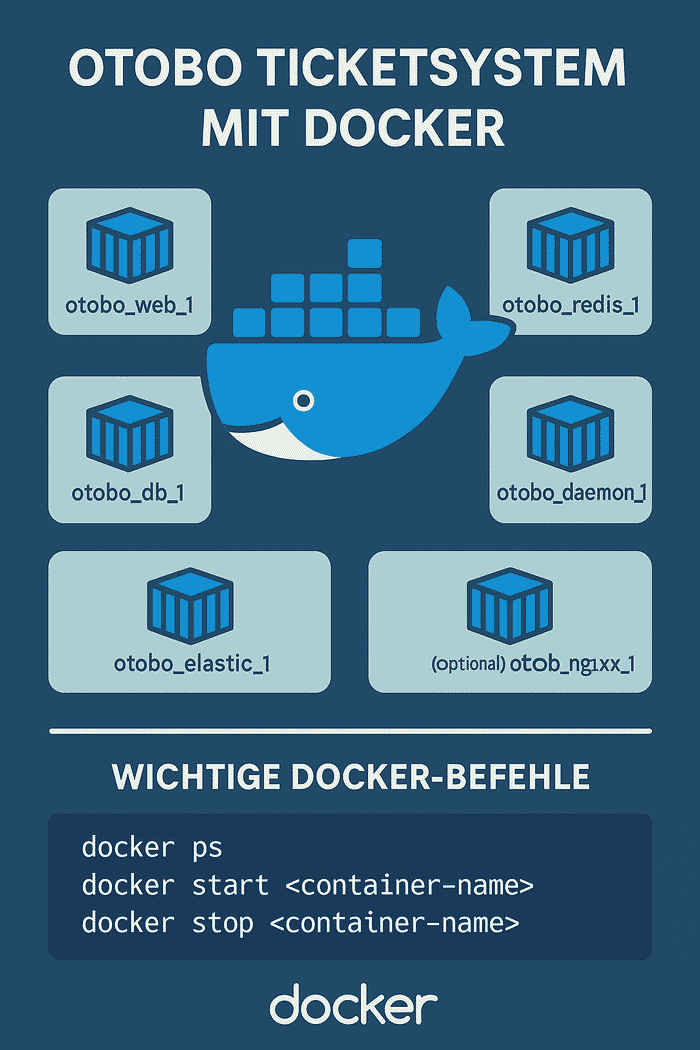
This guide describes the full installation of OTOBO on Debian using Docker and Docker Compose. The official otobo-docker stack bundles every required service (web server, database, Elasticsearch, Redis and optionally Nginx for HTTPS), so you can have OTOBO up and running within minutes.
Older versions (Debian 9/10) generally work as well, as long as a current Docker version can be installed.
| Component | Minimum | Recommended (production) |
|---|---|---|
| CPU | 2 cores | 4+ cores |
| RAM | 4 GB | 8 GB or more |
| Disk | 20 GB free | 40 GB+ (SSD) |
| Docker | 19.03.13 | latest version |
| Docker Compose | v2 | latest version |
| Git | 2.17 | latest version |
[!NOTE] Elasticsearch is part of the stack and requires a fair amount of memory. For production environments, plan for at least 8 GB of RAM.
First update the package sources and install the required packages:
sudo apt updatesudo apt install -y docker.io docker-compose-v2 git[!NOTE] On older Debian versions without the
docker-compose-v2package, install the official Docker repository instead (see docs.docker.com) or use the legacydocker-composepackage.
Enable and start the Docker service so it launches automatically on boot:
sudo systemctl enable --now dockerOptional: add your user to the docker group so you can run Docker commands without sudo (log out and back in afterwards):
sudo usermod -aG docker $USERVerify the installation:
docker --versiondocker compose versionThe otobo-docker repository contains the Docker Compose configuration and helper scripts. Use the tag that matches the OTOBO version you want (e.g. rel-11_0 for the current 11.0 series).
cd /optsudo git clone https://github.com/RotherOSS/otobo-docker.git --branch rel-11_0 /opt/otobo-dockercd /opt/otobo-dockerls -a # sanity check: README.md and the .docker_compose_env_* files should be present.env fileThe .env file is the central configuration file for your OTOBO installation. It is not created automatically; instead you copy it from one of the provided sample files:
.docker_compose_env_http – OTOBO over HTTP (simplest option, e.g. behind your own reverse proxy).docker_compose_env_https – OTOBO over HTTPS with the built-in Nginx reverse proxyFor a simple HTTP installation:
sudo cp -p .docker_compose_env_http .envFor HTTPS, use .docker_compose_env_https instead and provide a certificate (see Advanced installation).
Open the .env file and set a secure password for the database administrator:
sudo nano .envAdjust the following line:
OTOBO_DB_ROOT_PASSWORD=<your_secure_password>You will need this password later in the web installer to create the database and the OTOBO schema.
Start the whole stack in the background:
sudo docker compose up --detachOn first start the Docker images are downloaded from Docker Hub – depending on your connection this can take a few minutes.
Then verify that all services are running (five for HTTP, six for HTTPS):
sudo docker compose psOpen the OTOBO installer in your browser:
http://<your-server-ip>/otobo/installer.plFollow the installer steps and note the following:
OTOBO_DB_ROOT_PASSWORD.db – this is the internal service name of the database container.When finished you can log in to the agent interface (default user root@localhost; the password is shown at the end of the installer).
ufw allow 80/tcp.sudo docker compose exec web bashElasticsearch does not start / the container exits immediately
Elasticsearch requires an increased vm.max_map_count value. Set it permanently:
sudo sysctl -w vm.max_map_count=262144echo "vm.max_map_count=262144" | sudo tee /etc/sysctl.d/99-otobo-elasticsearch.confPort 80 or 443 already in use
Set different ports in the .env file via OTOBO_WEB_HTTP_PORT or OTOBO_WEB_HTTPS_PORT and restart the stack.
View the logs of a service
sudo docker compose logs -f websudo docker compose logs -f elasticRestart or stop the stack
sudo docker compose restartsudo docker compose stopFor HTTPS configuration, Nginx customization, environment variables, updates and backups, read the Advanced installation of OTOBO.
If you want to combine OTOBO with AI-powered ticket classification, see OTOBO AI & Open Ticket AI.
Get OTOBO professionally installed
Save time and reduce risks: Softoft handles turnkey installation, Docker deployment, hardening, and configuration for your production environment.
OTOBO officially supports Debian 11 (Bullseye) and Debian 12 (Bookworm) for installations utilizing Docker and Docker Compose. While these are the primary recommended versions, older Debian releases such as Debian 9 and Debian 10 can also generally work, provided that a sufficiently current version of Docker can be successfully installed on them. The Docker-based approach ensures a consistent and isolated environment for OTOBO, making the specific Debian version less critical as long as the underlying Docker engine is compatible and functional. This method abstracts away many OS-specific dependencies, simplifying the setup process across different Debian releases.
Quellen / Sources
For a smooth OTOBO installation on Debian with Docker Compose, specific system resources are recommended. You should plan for at least 2 CPU cores (4+ recommended for production), 4 GB of RAM (8 GB or more for production environments), and 20 GB of free disk space (40 GB+ SSD recommended for production). It's crucial to note that Elasticsearch, a component of the OTOBO Docker stack, is memory-intensive. Therefore, allocating at least 8 GB of RAM is highly recommended for production setups to ensure optimal performance and stability. Additionally, Docker version 19.03.13 or newer, Docker Compose v2 or newer, and Git version 2.17 or newer are required.
Quellen / Sources
To prepare your Debian system for OTOBO, first update your package sources and then install the necessary packages: sudo apt update followed by sudo apt install -y docker.io docker-compose-v2 git. For older Debian versions that might not have the docker-compose-v2 package, you may need to install the official Docker repository as per docs.docker.com or use the legacy docker-compose package. After installation, enable and start the Docker service to ensure it launches automatically on boot using sudo systemctl enable --now docker. Optionally, add your user to the docker group (sudo usermod -aG docker $USER) to run Docker commands without sudo; remember to log out and back in for this change to take effect. Finally, verify the installation with docker --version and docker compose version.
Quellen / Sources
The .env file serves as the central configuration file for your OTOBO Docker Compose installation. It's crucial because it defines environment variables that control various aspects of the OTOBO stack, such as database credentials, port mappings, and other service-specific settings. This file is not automatically generated; instead, you create it by copying one of the provided sample files from the otobo-docker repository. For a standard HTTP setup, you would use sudo cp -p .docker_compose_env_http .env. If you plan to use HTTPS with the built-in Nginx reverse proxy, you'd copy .docker_compose_env_https instead. This step is essential before starting the Docker containers, as the variables defined within it dictate how OTOBO and its dependencies operate.
Quellen / Sources
Setting the OTOBO_DB_ROOT_PASSWORD in the .env file is a critical step because this password is used by the OTOBO web installer to establish a connection with the database and create the necessary OTOBO database schema. Without a correctly configured and secure root password, the web installer will be unable to proceed, leading to installation failure. You must open the .env file (e.g., using sudo nano .env) and replace <your_secure_password> with a strong, unique password. This password acts as the administrative credential for the database during the initial setup phase, ensuring that OTOBO can properly initialize its data storage.
Quellen / Sources
If OTOBO containers, particularly Elasticsearch, fail to start or exit immediately, a common cause is insufficient vm.max_map_count for Elasticsearch. To resolve this, set the value permanently using: sudo sysctl -w vm.max_map_count=262144 and echo "vm.max_map_count=262144" | sudo tee /etc/sysctl.d/99-otobo-elasticsearch.conf. Another frequent issue is port conflicts (e.g., port 80 or 443 already in use). You can fix this by modifying OTOBO_WEB_HTTP_PORT or OTOBO_WEB_HTTPS_PORT in your .env file to different available ports, then restarting the stack with sudo docker compose restart. To diagnose other issues, view the logs of specific services using sudo docker compose logs -f <service_name>, for example, sudo docker compose logs -f web or sudo docker compose logs -f elastic.
Quellen / Sources
After successfully completing the OTOBO web installer, several post-installation steps are recommended to ensure your system is fully operational and secure. First, verify that the OTOBO daemon container is running, as it handles essential background tasks like email fetching and escalations. Next, configure your firewall to open the necessary ports: port 80 for HTTP or port 443 for HTTPS. For instance, using ufw, you would execute ufw allow 80/tcp. Lastly, for administrative tasks or command-line operations within the OTOBO environment, you can enter the web container using sudo docker compose exec web bash. This provides a shell interface to manage OTOBO directly.
Quellen / Sources